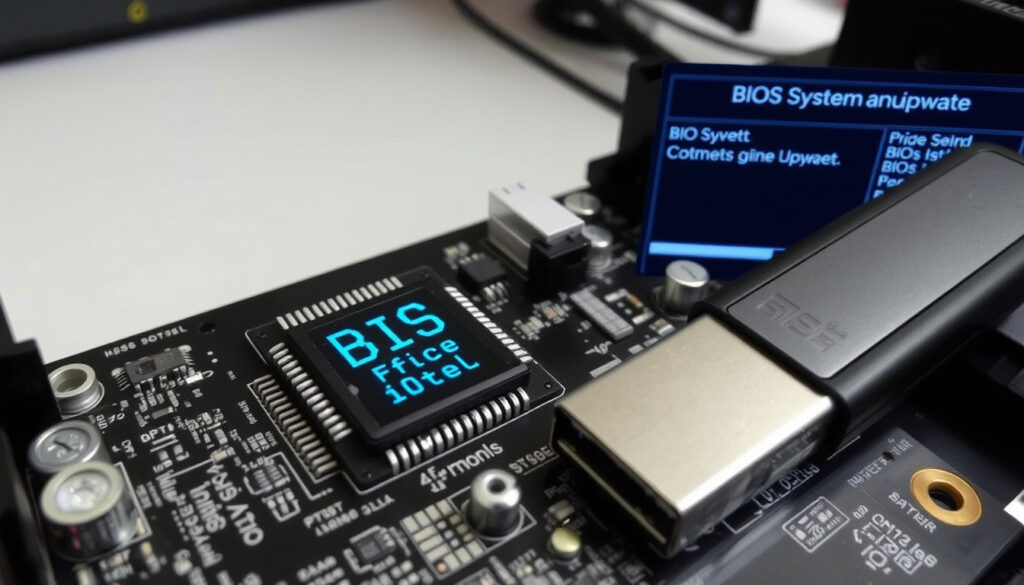
How to Update BIOS: Step-by-Step Guide with Safety Tips
Few PC maintenance tasks stir up as much anxiety as updating the BIOS. But according to ASUS (official motherboard manufacturer), you can perform the update directly from the BIOS utility using their EZ Flash tool.
Typical BIOS update duration: 5–10 minutes ·
Risk of permanent damage with modern tools: Below 1% if followed correctly ·
Number of major motherboard brands with Windows‑based update tools: 5 (ASUS, Gigabyte, MSI, ASRock, Intel)
Quick snapshot
- BIOS updates can fix security vulnerabilities (ASUS Support)
- Most manufacturers provide Windows‑based tools (MSI Official Guide)
- Whether automatic updates via Windows Update are enabled by default
- Whether a BIOS update benefits a stable system with no compatibility issues
- Whole process: 5–10 minutes (YouTube tutorial)
- Release frequency: every 3–6 months for stability patches (YouTube tutorial)
- Check your BIOS version (see section below)
- Decide if an update is needed based on release notes
Four quick facts that set the stage: BIOS stands for Basic Input/Output System, modern motherboards use UEFI but are still called BIOS, many boards have dual‑BIOS for recovery, and updates roll out every few months for security.
| Label | Value |
|---|---|
| What BIOS stands for | Basic Input/Output System |
| BIOS vs UEFI | Modern motherboards use UEFI, but both are often called BIOS |
| Dual BIOS feature | Many motherboards have a backup BIOS chip for recovery |
| Typical update frequency | Every 3–6 months for stability; security patches released as needed |
How do I update my PC BIOS?
Three main methods exist – USB, Windows‑based tools, and internet flash – and the best one depends on your motherboard and comfort level.
Prepare a USB drive
- Format the drive as FAT32 – ASUS (official motherboard manufacturer) recommends this step. (see above)
- Copy the extracted BIOS folder to the root directory.
The method works with every motherboard. But many modern boards let you skip the USB entirely by using a Windows utility or internet flash.
Download the correct BIOS file from the manufacturer
- Find your exact motherboard model on the support page – ASUS support lists BIOS files under the BIOS category. (see above)
- Compare the latest version number with your current one (see below).
Boot from the USB drive or use a Windows tool
- Restart and enter BIOS (usually F2 or Delete).
- For ASUS: press F7 for Advanced Mode then head to Tool > ASUS EZ Flash 3 – YouTube walkthrough.
- For MSI: press Delete, then click M‑FLASH – MSI official procedure. (see above)
Run the update utility and follow prompts
- Select the BIOS file from your USB or the displayed drive.
- Confirm – the system will restart and flash automatically.
- Do not power off or remove the USB – MSI warns this can brick the motherboard. (see above)
After reboot, verify the new version in System Information or BIOS setup. The implication: a single careful session of 10 minutes can unlock new CPU support or fix a security hole.
Is updating BIOS still risky?
Modern dual‑BIOS and Windows‑based tools have pushed the failure rate below 1% for users who follow instructions. Fear should not be the deciding factor.
Common risks: bricking the motherboard, system instability
- A power outage during the flash can corrupt the BIOS.
- Using the wrong file (wrong model or revision) can leave the board non‑functional.
Mitigation: use a UPS, verify exact model, read release notes
- Plug the PC into a UPS or ensure stable mains power.
- Triple‑check the motherboard model – ASUS FAQ stresses exact model matching. (see above)
- Read the changelog to see if the update addresses your issue.
When updates are safe: security patches, CPU/memory compatibility fixes
- Security fixes (e.g., Spectre, Meltdown) are nearly risk‑free with modern tools.
- Compatibility updates for new CPUs are worth the small risk – YouTube tutorial confirms this.
The pattern: risk has shifted from “scary” to “manageable” because modern boards have a backup BIOS chip that activates if the main one fails.
How do I know if my BIOS is up to date?
Check BIOS version in System Information (msinfo32)
- Press Win + R, type
msinfo32, and find “BIOS Version/Date”.
Compare with the latest version on the motherboard support page
- Go to the support page of your motherboard manufacturer – e.g., ASUS support lists the latest BIOS version. (see above)
Use command prompt: wmic bios get smbiosbiosversion
- Open Command Prompt and run that command to see the version string.
What this means: if your current version matches the latest posted, you’re up to date. If not, you can decide whether the changes matter to you.
Does Windows automatically update my BIOS?
Windows Update can deliver UEFI firmware updates, but this is not universal. Relying on it alone may leave you outdated while also risking an unexpected reboot.
Windows Update can deliver firmware updates for some devices (UEFI capsule updates)
- Windows 10 and 11 may include BIOS updates under “Optional updates” – Microsoft documentation (Windows hardware developer) explains the UEFI capsule update mechanism.
Not all motherboards support this feature
- Capability depends on the manufacturer making the update available via Windows Update.
- Major brands like ASUS and MSI often provide their own Windows tools instead.
Check for optional updates under Windows Update > Advanced options
- Open Settings > Update & Security > Windows Update > Advanced options > Optional updates.
The trade‑off: automatic updates are convenient but you lose control over timing. Manual flashing lets you pick a stable moment.
How do I update BIOS on an ASUS motherboard?
Using EZ Update tool in Windows
- Install AI Suite 3 and use the EZ Update module – it downloads and flashes automatically.
Using USB BIOS Flashback (no CPU or RAM required)
- Rename the BIOS file to the required format, put it on a USB, plug into the Flashback port, and press the button – ASUS support describes this for select boards. (see above)
Using AI Suite 3 or other bundled software
- Open AI Suite 3, go to EZ Update, and let it handle the process.
Why this matters: ASUS offers the widest range of update methods, including the unique USB BIOS Flashback that works even without a CPU. For most users, EZ Update in Windows is the simplest route.
Pros and Cons of Updating BIOS
Upsides
- Security patches for vulnerabilities like Spectre/Meltdown
- Support for new CPUs and memory modules
- Improved system stability and bug fixes
Downsides
- Risk of bricking if interrupted
- Requires careful preparation (model matching, backup)
- May not provide noticeable benefit for stable systems
The implication: understanding both sides helps decide if the update is worthwhile.
Step‑by‑Step: How to Update Your BIOS Safely
- Identify your motherboard model – use System Information or CPU‑Z.
- Check current BIOS version – via msinfo32 or BIOS setup.
- Download the correct BIOS file from the manufacturer’s support page.
- Prepare a USB drive (FAT32) or use a Windows utility if available.
- Back up current BIOS settings (most BIOS menus have a save/load profile option).
- Launch the update – from BIOS (EZ Flash, M‑FLASH) or the Windows tool.
- Wait patiently – do not interrupt the process even if the screen stays black.
- Verify the new version after reboot and restore your settings if needed.
What this means: careful preparation eliminates most risk.
Clarity: What We Know and What Remains Unclear
Confirmed facts
What’s unclear
- Whether automatic BIOS updates via Windows Update are enabled by default on all systems
- Whether a BIOS update will benefit a system that is already stable and has no compatibility issues
- Whether Windows‑based tools are as reliable as USB flashing for all brands
The pattern: known facts outweigh uncertainties for most users.
Expert Perspectives
“BIOS updates can protect against security threats and improve system stability, so keeping your firmware current is a good practice.”
“Using EZ Update in Windows is the recommended method for most users, because it reduces the risk of human error compared to manual USB flashing.”
ASUS FAQ (motherboard manufacturer)
“Windows Update can deliver UEFI firmware updates for devices that support the capsule update mechanism, but this is not enabled for all hardware.”
Microsoft Documentation (Windows hardware developer)
For the vast majority of PC owners, updating the BIOS is a low‑risk, high‑reward procedure when done correctly. The key is preparation: know your model, download the right file, and never interrupt the process. For gamers using a stable system, skipping updates is often fine. But if you’re upgrading to a new CPU or need a security fix, the small effort is absolutely worth it. For anyone sitting on a system that hasn’t seen a BIOS update in years, the smartest move is to check the changelog and decide – your hardware will thank you.
For more tech troubleshooting, check out our guide on How to Fix Phone Screen Unresponsive Touch – Android & iPhone Guide and Micro Center Near Me: USA-Only Stores & EU Shipping Alternatives.
For a detailed walkthrough tailored to ASUS, MSI, and Gigabyte boards, check out this guide on safe BIOS update steps.
Frequently asked questions
What happens if a BIOS update fails?
The motherboard may become unresponsive (bricked). Many modern boards have dual‑BIOS or recovery features. If you have a backup chip, the system will boot from it automatically.
Do I need to update BIOS for a new CPU?
Often yes – newer CPUs require a BIOS revision to be recognized. Check the motherboard’s CPU support list before installing.
How long does a typical BIOS update take?
Around 5 to 10 minutes, including the reboot process.
Can I update the BIOS without a battery?
No – the system needs the CMOS battery to keep settings. A dead battery can cause the update to fail. Replace it if needed.
Should I update BIOS if my system is running fine?
Not necessarily. Only update if the changelog includes a security fix or a feature you need. Otherwise, stability is not guaranteed to improve.
Is it safe to update BIOS during a thunderstorm?
No. A power surge during the flash can corrupt the BIOS. Wait until the weather is stable or use a UPS.
How do I recover from a corrupted BIOS?
Use the motherboard’s recovery method – often a dedicated USB port and button. Refer to your manual for the exact procedure.
More related posts
 Water Shoe for Women: Be t Pick Te ted & Reviewed
 Hip Dysplasia in Dogs: Signs, Treatment, Prognosis
 How to Get Rid of a Canker Sore – Effective Remedies and Prevention
 What Is Power BI? Guide vs Excel, Learning Curve & More
 Budweiser Super Bowl Commercial 2026 – American Icons with Clydesdales
 Cast of Avatar 2: Actors and Characters in The Way of Water
 Sarah Jessica Parker Movies and TV Shows: Full List
 Is the View Cancelled? Season 28 & the Facts
